How to Set Up 2fa for Business Accounts Without Getting Locked Out
Two-factor authentication can make account takeovers much harder, but the setup process matters. For small business owners, the real challenge is not just turning 2FA on. It is enabling it in a way that protects important accounts without creating avoidable lockouts for you or your team.
That matters for identity theft protection because business email, payment accounts, cloud storage, and customer systems often hold enough information to cause both financial and privacy problems if someone gets in with a stolen password.
This guide walks through seven practical setup steps based on common implementation guidance. The focus is simple: use 2FA in a way that improves security, keeps recovery manageable, and helps employees avoid the mistakes that cause the most trouble.
Understanding 2FA and Its Role in Business Security
Two-factor authentication adds a second check after your password. In most small business setups, that second factor is a time-based code from an authenticator app, a prompt on a trusted device, or a backup code used during recovery.
This extra step helps because passwords can be guessed, reused, stolen in breaches, or entered on fake login pages. If a password is exposed, 2FA can still reduce the chance that someone can sign in.
For small businesses, the main benefit is practical rather than abstract. The accounts that run daily operations often sit behind ordinary logins: email, bookkeeping, payroll, customer platforms, domain management, and file sharing. If one of those accounts is taken over, the fallout can include invoice fraud, impersonation, data exposure, and business interruption.
Good 2FA setup should balance two goals:
- Make unauthorized access harder.
- Make legitimate recovery possible when a phone is lost, replaced, or unavailable.
That second point is where many businesses run into trouble. Turning on 2FA without backup planning can create a self-inflicted outage. A careful setup reduces that risk while improving day-to-day account security.
Step 1: Choose a Reliable Authenticator App
For most small businesses, an authenticator app is a practical starting point. These apps generate short-lived codes tied to each account, and they are commonly used across major business platforms.
When choosing an app, focus on reliability, ease of use, and whether it supports account backup or recovery features that fit your business process. The goal is not to find a magic tool. The goal is to choose one your team can actually use consistently.
During authenticator app setup, platform instructions usually follow a similar pattern:
- Sign in to the account's security settings.
- Turn on two-step verification or multi-factor authentication.
- Choose an authenticator app as the method.
- Scan the QR code with the app.
- Enter the generated code to confirm setup.
A few practical rules help here.
- Use only trusted devices owned or controlled by the business or the account owner.
- Record which app is being used for which critical account.
- If the platform allows it, register more than one trusted device or backup option.
- Do not leave setup half-finished. Confirm that a fresh code works before closing the page.
If you manage several accounts, a password manager can help you document which accounts use app-based 2FA and where recovery details are stored. That is a useful extension of password manager basics, especially for owners juggling many services.
Step 2: Generate and Store Backup Codes
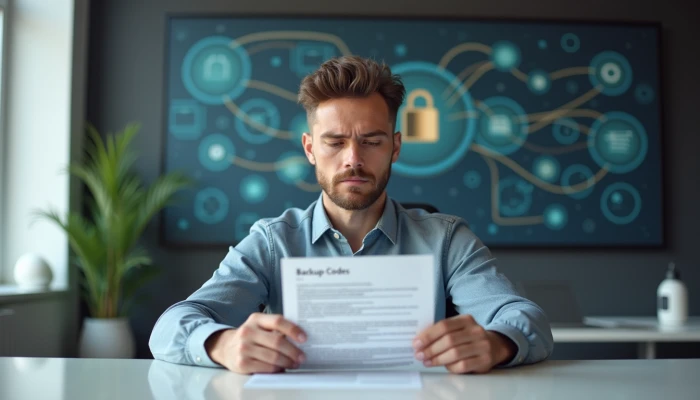
Backup codes are one of the most important parts of 2FA setup, and one of the most ignored. They are the safety net that protects against losing access to your own account when your phone is lost, broken, reset, or unavailable.
If a platform offers backup codes, generate them during setup instead of planning to come back later. Many lockout problems happen because the second factor was enabled, but the recovery step was skipped.
Use this checklist when handling backup codes.
- Generate the codes immediately after enabling 2FA.
- Print them or write them down clearly.
- Store them in a secure location separate from the phone that runs your authenticator app.
- Limit access to people who genuinely need recovery authority.
- Replace old codes after major account or staff changes, if the platform issues new ones.
A simple storage approach often works better than an overly clever one. The main point is separation. If your phone, laptop, and backup codes all live in the same bag, one loss can become a full lockout.
This is also a good place to define ownership. For each critical account, decide who is responsible for storing backup codes and who is allowed to use them. That avoids confusion during an urgent recovery attempt.
Step 3: Train Employees on 2FA Best Practices
Employee training is not optional if more than one person uses business systems. Even a well-configured 2FA rollout can fail if staff do not understand how the process works or what warning signs to watch for.
Training should stay practical and short. Employees do not need a deep security lecture. They need clear instructions for setup, login, recovery, and suspicious situations.
Cover these points during employee training.
- How to complete authenticator app setup without skipping verification steps.
- Where to get help if a device is replaced or lost.
- How backup codes work and who controls them.
- Why 2FA codes should never be shared in email, chat, or over the phone unless a verified internal process requires it.
- How to spot login prompts or code requests that seem out of context.
One useful habit is to run a brief practice login after setup. That helps employees get comfortable before they are under pressure.
You can also give staff a short mistake-to-avoid reference.
| Mistake | Why it causes problems | Better approach |
|---|---|---|
| Setting up 2FA on only one phone | A lost device can block access | Add approved backup options and store backup codes |
| Ignoring unexpected code prompts | May signal account abuse or confusion | Pause and verify what triggered the request |
| Saving backup codes in the same device notes app | Device loss can remove both access and recovery | Store recovery details separately |
| Waiting until an emergency to learn recovery steps | Increases downtime and confusion | Review recovery steps in advance |
Good training also supports scam prevention tips and phishing warning signs, because attackers often try to trick people into approving prompts or revealing one-time codes.
Step 4: Enable 2FA on High-Risk Accounts
Not every account needs to be first in line. If your team is small or your systems are spread across many services, start with the accounts that can cause the most damage if compromised.
A practical rollout order usually looks like this:
- Primary business email accounts
- Financial and banking-related accounts
- Customer management and invoicing systems
- Cloud storage and collaboration platforms
- Domain registrar and website administration accounts
Email deserves special attention because it often acts as the recovery hub for other services. If someone controls your email, they may be able to reset passwords elsewhere.
Prioritizing high-risk accounts also reduces friction. Instead of forcing 2FA onto every low-value login at once, you can protect the most sensitive systems first, learn where users struggle, and improve the process before expanding.
This step should be documented in a simple account inventory.
- Account name
- Owner or admin
- 2FA status
- Recovery method
- Backup code location
- Last review date
That inventory becomes especially useful during staff turnover, device replacement, or breach response. It also keeps your 2FA rollout tied to actual business risk rather than guesswork.
Step 5: Review Account Recovery Options
2FA is only part of account access. Recovery settings matter just as much, especially for small businesses that cannot afford long delays when an owner or employee loses a device.
Review each critical account's recovery paths and make sure they still make sense. Some platforms allow a recovery email, a phone number, trusted devices, or app backup features. Those options should match your real-world business continuity plan.
Ask these questions for each important account.
- Is the recovery email still controlled by the right person or team?
- Is the recovery phone number current?
- Are there approved secondary devices?
- Is there a documented process for replacing a lost phone?
- Has anyone tested the recovery path recently?
Testing matters. A recovery option that looked fine during setup may fail later because the phone number changed, the employee left, or the recovery mailbox is no longer monitored.
Keep recovery methods current, but avoid creating unnecessary exposure. For example, adding a personal phone number to a shared business account may solve one problem while creating another. Use the most stable and appropriate contact method available.
This kind of review fits naturally into a broader account security checklist, even if your main focus right now is 2FA.
Step 6: Audit 2FA Settings Regularly
2FA setup is not a one-time task. Devices change, employees leave, platforms update their security options, and old recovery details become inaccurate.
A regular audit helps you catch those issues before they become lockouts or security gaps. For many small businesses, a quarterly review is a reasonable starting point.
Use this audit checklist.
- Confirm 2FA is still enabled on priority accounts.
- Review which devices or methods are authorized.
- Remove access tied to former employees or retired devices.
- Verify backup codes are still available and stored correctly.
- Check whether recovery phone numbers and email addresses are current.
- Review whether platform changes introduced new prompts or options.
If your business has onboarding and offboarding steps, include 2FA in both. New employees may need setup support, and departing employees may leave behind trusted devices, app access, or recovery methods that should be removed.
An audit is also the right time to look for friction. If employees repeatedly struggle with the same login step, fix the process rather than assuming they will adapt. Better instructions, clearer ownership, or a more consistent authenticator app setup can prevent both mistakes and support requests.
Conclusion
Two-factor authentication works best when it is planned, documented, and reviewed. For small business accounts, the biggest mistakes usually are not technical. They are operational: skipping backup codes, relying on one device, overlooking recovery settings, or failing to train employees.
If you follow these seven setup steps, you can reduce lockout risk while making important accounts harder to misuse after a stolen or reused password. Start with your highest-risk accounts, make backup and recovery part of the setup from day one, and revisit the system regularly.
That approach will not promise complete protection, but it does give your business a more realistic and durable layer of account security.