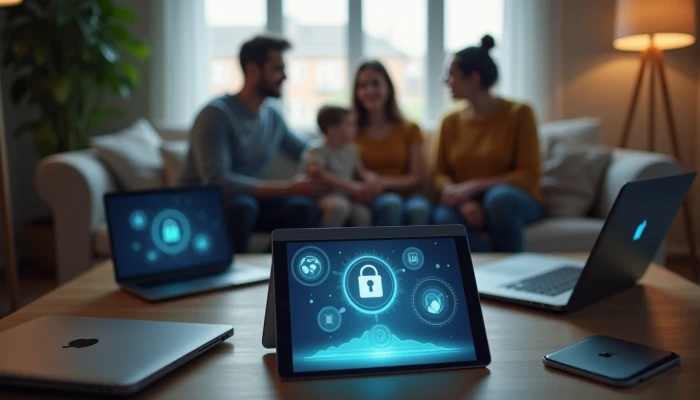
When One Device Belongs to Everyone: Practical Ways to Protect Family Privacy
A shared device is convenient, but it also creates easy paths to accidental data exposure. One person leaves an email account signed in, another saves files to a shared folder, and a child taps "allow" on an app permission without understanding what it means. None of that requires a dramatic security failure to become a real privacy problem.
The good news is that families do not need extreme measures to improve protection. A few practical habits can make a big difference: separate user accounts, stronger device access controls, and better use of encrypted communication. These steps also support broader goals like family identity theft protection and a more realistic account security checklist for everyday life.
This guide focuses on actions most households can take with built-in settings and simple routines. It does not promise complete privacy, and it does not rely on product hype. The goal is to help you reduce unnecessary exposure and make shared devices safer to use.
Creating Separate User Accounts for Each Family Member
The simplest way to reduce cross-access on a shared computer or tablet is to stop treating it like one shared profile. Separate user accounts help keep files, browser history, saved passwords, app settings, and sign-ins from blending together.
Implementation guidance from major platform support resources consistently emphasizes account separation as a basic security and organization step. It is especially useful when adults share a home device for work, school, finances, and personal communication.
A practical setup usually looks like this:
- Create one account for each regular user.
- Give each person their own password or sign-in method.
- Reserve administrator access for one or two adults only.
- Use standard accounts for children and guests.
- Save personal files inside each user's own folders instead of common desktop or downloads areas.
This matters because many privacy problems on shared devices are not caused by attackers. They happen when one person opens another person's browser session, sees synced photos, reads notifications on the lock screen, or uploads the wrong file from a shared folder.
If a family member does not need a cloud-linked account, many systems also allow local accounts. That can be useful when you want basic separation without connecting every user profile to the same broader ecosystem.
Here is a simple way to think about account choices:
| Setup choice | Main benefit | Main caution |
|---|---|---|
| One shared account | Easy to manage at first | High risk of mixed files, saved logins, and accidental access |
| Separate standard accounts | Better privacy separation for daily use | Requires a few extra minutes to set up |
| Separate accounts with limited child access | Better control over apps and settings | Adults need to maintain permissions over time |
| Guest account for occasional use | Reduces exposure of personal files and accounts | Not ideal for long-term personalized use |
If your household is also working on personal data removal, this step supports that effort. Removing exposed information from public sites helps outside the home, but it does not do much if private documents, account logins, or messages remain easy to access on a device everyone uses.
A good rule is simple: if the information would matter in a password reset, financial account, school record, tax file, or private conversation, it should live inside an individual account, not a shared space.
Implementing Device Access Controls
Once accounts are separated, the next layer is controlling who can open the device and what they can do after signing in. Device access controls are the everyday settings that prevent casual access from turning into unnecessary exposure.
Start with the basics:
- Turn on automatic screen locking.
- Use a strong password or PIN for each account.
- Enable biometric login if the device supports it and the household is comfortable using it.
- Require a password after restart, not just after sleep.
- Disable lock-screen previews for sensitive notifications when possible.
For families with children, parental controls can help limit app installs, purchases, account changes, and access to certain types of content. These controls are not just about screen time. They also help reduce privacy mistakes, such as installing apps with broad permissions or granting location access without review.
It is also worth reviewing settings that quietly expand data sharing. A practical privacy settings guide for a shared device should include checks for:
- Location access
- Microphone and camera permissions
- Contacts and calendar access
- Background app activity
- Browser autofill and saved payment details
- File-sharing and nearby-sharing features
Use this quick household checklist during setup:
- [ ] Each regular user has a separate account.
- [ ] Every account has its own password or PIN.
- [ ] Admin rights are limited to responsible adults.
- [ ] Screen lock activates automatically after inactivity.
- [ ] Sensitive notifications are hidden on the lock screen.
- [ ] Children cannot install apps without approval.
- [ ] Location, camera, and microphone permissions have been reviewed.
- [ ] Browser autofill and saved cards are checked for each account.
- [ ] Guest access is available for temporary users, if needed.
Shared mobile devices need extra attention because they often contain text messages, email, photos, and authentication prompts in one place. If a phone or tablet is regularly handed around the family, it is smart to treat it as a high-sensitivity device and tighten access settings accordingly.
These controls will not eliminate every risk, but they reduce the chance that a routine handoff becomes an account security problem.
Securing Communication with Encryption
Shared devices do not just store information. They also send it. That is why communication habits matter, especially when a household uses the same computer or tablet for email, messaging, file sharing, and document exchange.
For sensitive conversations, prefer services that support encrypted communication, especially end-to-end encryption where appropriate. This helps reduce exposure while messages are in transit. It is also a reminder that not every communication channel offers the same level of protection by default.
A practical rule is to match the channel to the sensitivity of the information.
| Type of information | Better approach | Avoid when possible |
|---|---|---|
| Routine family coordination | Standard messaging may be fine | Sharing extra personal details unnecessarily |
| Financial or identity-related details | Encrypted messaging or password-protected documents | Plain SMS or unsecured message threads |
| Copies of IDs, tax forms, or account records | Encrypted storage or protected attachments | Sending as open attachments without added protection |
| Passwords or access codes | Separate secure channel or password manager sharing feature | Emailing or texting in the same thread as the document |
Guidance from federal security resources commonly recommends protecting sensitive attachments with strong passwords and sharing that password through a different channel. That is a useful habit for families and small households, especially when sending documents that include account numbers, legal records, or identity details.
Encryption also matters for storage. If a device supports built-in storage encryption, turn it on. On many phones and modern computers, encryption is tied to the device lock method. That means a stronger passcode does more than block casual access; it also helps protect stored data if the device is lost or stolen.
A few communication habits go a long way:
- Do not send Social Security numbers, tax documents, or account recovery details through ordinary SMS unless there is no better option.
- Avoid leaving sensitive files in shared downloads folders after sending them.
- Log out of webmail and messaging apps on shared computers when the session is finished.
- Review cloud-sharing links so they are not left open to anyone with the link.
This is one place where families often overestimate safety. A message feels private because it is sent to a trusted person, but the device, app, or storage method may still expose it to others in the household. Encryption helps, but so does choosing the right channel and cleaning up shared-device leftovers afterward.
Regular Privacy Checks and Updates
Shared-device privacy is not a one-time setup. People install new apps, children grow into new permissions, browsers save new data, and operating systems change settings over time. A short recurring review is often more useful than a complicated one-time overhaul.
A monthly or quarterly check can cover the basics:
- Review who has accounts on the device.
- Remove old guest profiles or unused accounts.
- Check app permissions for camera, microphone, contacts, files, and location.
- Install operating system and browser updates.
- Review saved passwords, payment details, and autofill data.
- Confirm backups are working and protected.
- Talk through recent scam or phishing attempts with the household.
This last step matters more than many people expect. Technical controls help, but families also need shared habits. A child who clicks every pop-up, or an adult who enters a password after following a suspicious text link, can undo careful setup.
Keep the conversation practical. Focus on a few repeat reminders:
- Pause before entering passwords after clicking links.
- Check who is asking for information and why.
- Be cautious with urgent messages about deliveries, banking, or account problems.
- Ask before approving app permissions or installing new software.
If your household wants a lightweight account security checklist, use this one:
- [ ] Devices update automatically or are checked regularly.
- [ ] Browsers and apps are removed if no longer used.
- [ ] Permissions are reviewed after major app installs.
- [ ] Lock-screen settings still match the household's needs.
- [ ] Sensitive accounts use stronger sign-in protections.
- [ ] Family members know the basic warning signs of scams and suspicious links.
Regular review also supports broader family identity theft protection. Identity misuse often starts with small pieces of exposed information: a saved document, a visible notification, a reused login, or a child account with weak controls. Reducing those small exposures is a realistic way to lower risk over time.
The goal is not perfect privacy. It is making sure shared devices do not quietly become the easiest place for personal information to leak.
Conclusion
Shared family devices do not have to become privacy weak points. In most homes, the biggest improvements come from layered basics: separate user accounts, stronger device access controls, and safer communication habits.
That combination helps reduce accidental exposure, limits cross-account access, and makes sensitive information harder to view or share casually. It also fits the practical, ongoing nature of consumer privacy. No single setting solves everything, and no setup offers complete protection.
What works best is a routine: separate accounts, encrypted communication when needed, regular permission reviews, and simple family rules around updates, sign-ins, and suspicious messages. Those habits are manageable, realistic, and much more useful than fear-based promises.